
Building a Grid Inventory System in Godot
What’s huh?
I discovered some nice tricks in godot that allowed me to create a pretty simple “Resident evil style” grid based inventory system for a game I am working on.
NOTE! This isn’t an in-depth tutorial, but the full source available in my godot tools collection.
The Scenetree
Before I dig into the details, let me just set the scene for how this is going to work. My Scenetree looks like this
> Node2D
	> SubViewportContainer
		> SubViewport
			> Inventory
			> InventoryPreview
	> Item
	> Item
	...
Item nodes exist outside of the container that holds the Inventory node, and is what the player drags around the screen.
Inventory exists inside of a SubViewport, meaning it’s a scene rendered in a seperate space, and projected into the main Viewport.
ItemPreview will act as the “shadow” of the Item, and shows the player where the Item will be placed if dropped. This is what will be snapping to the grid, while the Item is always following the exact mouse poition.
I’ll be covering what I found to be the 3 key parts to getting this right:
- Getting the nodes to “snap” to the grid.
- Allowing your grid to be placed anywhere in the scene, without having to do a bunch of vector translations.
- Determining which cells on the grid are a valid drop location.
The grid
Vector2 has a very handy method called snapped( ). When you call it on a Vector2, it snaps the x and y to the closest multiple of the Vector2 you pass in the step parameter. This is perfect for creating a “snap to grid” feeling.
Here is a quick example to throw onto a Sprite2D that will follow the mouse.
1extends Sprite2D
2
3@export var snap: int = 128
4
5func _process(delta):
6	var snapped = Vector2(snapped(get_global_mouse_position().x, snap), snapped(get_global_mouse_position().y, snap))
7	global_position = snapped + Vector2(64,64)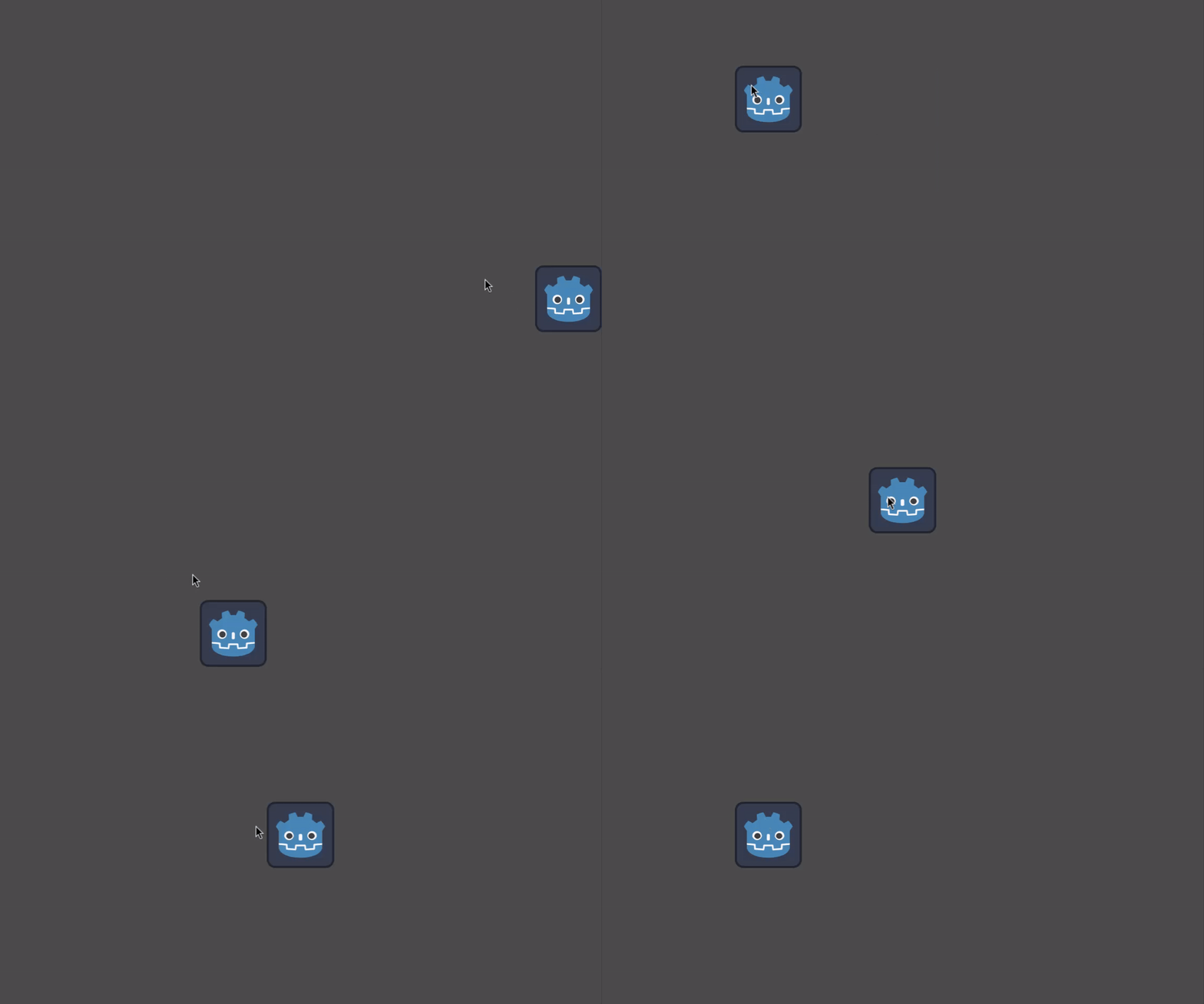
Making use of Rect2 here allows us to do boundary checks within a rectangular 2d space. This allows us to avoid a lot of math to figure out if the item being dragged is overlapping the grid. Here I have given my grid dimensions to Rect2, and I’ve drawn a simple grid with that data as well.
inventory.gd
 1class_name Inventory
 2extends Node2D
 3
 4@export var grid_size: Vector2 = Vector2(5,5)
 5@export var cell_size: Vector2 = Vector2(128,128)
 6
 7var inventory_list: Array
 8
 9func _draw() -> void:
10	# draw the grid based on grid_size & cell_size
11	for row in range(grid_size.y + 1):
12		draw_line(Vector2(0, cell_size.y * row), Vector2(cell_size.x * grid_size.x, cell_size.x * row),Color.ALICE_BLUE, 2.0, false)
13	for col in range(grid_size.x + 1):
14		draw_line(Vector2(cell_size.x * col, 0), Vector2(cell_size.x * col, cell_size.y * grid_size.y), Color.ALICE_BLUE, 2.0, false)
15
16## Returns true if a position is in bounds of the grid, and accounts for the area of the item at that position
17func in_bounds(position: Vector2, area: Vector2) -> bool:
18	var margin = cell_size / 2
19	var grid_rect = Rect2(global_position - margin, grid_size * cell_size + margin * 2)
20	var item_rect = Rect2(position, area)
21	return grid_rect.encloses(item_rect)
22
23func add_to_inventory(item) -> void:
24	inventory_list.append(item)
25
26func remove_from_inventory(item) -> void:
27	inventory_list.erase(item)
SubViewport magic
I remembered a fantastic talk from Godotcon a few years back, done by Raffaele Picca, about how amazing SubViewports can be for so many use cases. This inspired me to use one for my “grid container” (not to be confused with GridContainer).
The ItemPreview is assigned the texture and position data of the Item being dragged:
item_preview.gd
 1...
 2var dragging: bool = false
 3var parent_item: Item
 4
 5func _ready() -> void:
 6	InventoryEvents.drag_started.connect(show_preview)
 7	InventoryEvents.drag_stopped.connect(hide_preview)
 8
 9## shows a snapped copy of the item being dragged.
10func show_preview(item: Node, texture: Texture2D) -> void:
11	parent_item = item
12	%Preview.texture = parent_item.item_sprite
13	%Preview.rotation_degrees = parent_item.get_item_rotation()
14	dragging = true
15	visible = true
16
17## hides the preview of the dragged item. used when dragging has stopped.
18func hide_preview(position: Vector2) -> void:
19	if in_grid_bounds():
20		if !parent_item.colliding:
21			parent_item.global_position = viewport_to_scene(global_position)
22	parent_item = null
23	dragging = false
24	visible = false
25
26## helper for inventory's grid bound check on current item being held.
27func in_grid_bounds() -> bool:
28	var item_origin = scene_to_viewport(parent_item.get_origin_offset())
29	if %Inventory.in_bounds(item_origin, parent_item.get_item_sprite_size()):
30		return true
31	else:
32		return false
Then, the position of the preview is determined by translating the global_position to the viewport’s position:
item_preview.gd
 1...
 2func _process(delta):
 3	if dragging:
 4		var pos = scene_to_viewport(parent_item.get_origin_offset())
 5		var snapped_local = Vector2(snapped(pos.x, snap), snapped(pos.y, snap))
 6		global_position = snapped_local + (parent_item.get_item_sprite_size() / 2)
 7		if !in_grid_bounds() || parent_item.colliding:
 8			visible = false
 9		else:
10			visible = true
11
12## convert main scene position to SubViewport position.
13func scene_to_viewport(pos: Vector2) -> Vector2:
14	return pos - container_position
The benefits of this are actually two fold! I now have no need to worry about making sure my ItemPreview node is only visible when the node is overlapping the grid. I simply set the visibility of the ItemPreview node to true when the player is dragging the item. Since I can make the SubViewport’s size equal to the grid’s size, the preview effect will never be visible when the node is not overlapping with the grid.
Where we droppin'
Determining if an item is allowed to be placed on a section of the grid is something I found can easily be overthought by the developer (hey that’s me!). I was tempted to try a data-driven approach, reprenting my grid with a 2 dimensional array, where the array indices would represent the grid’s coordinates… and uhm… yeah it felt silly pretty fast.
Turns out the simple method of using Area2D with a CollisionShape2D is actually a perfect way to do it.
You don’t really want to be figuring out which grid cell coordinates your item overlaps based on its size and position, and checking those indices in the 2D array EVERY frame, do you?
You’ll want to use the Area2D.area_entered and Area2D.area_exited signals to count how many collisions are happening at any given time.
item.gd
 1...
 2
 3@export var collision_shape: Shape2D:
 4	set(value):
 5		collision_shape = value
 6		var col_node = %CollisionShape2D
 7		if value:
 8			if value is ConcavePolygonShape2D:
 9				col_node.position = -item_sprite_size / 2
10			col_node.position = Vector2.ZERO
11			col_node.shape = value
12		else:
13			col_node.shape = null
14var _overlapping_count: int = 0
15var colliding: bool:
16	get:
17		return _overlapping_count > 0
18
19...
20
21
22func _on_area_2d_area_exited(area: Area2D) -> void:
23	_overlapping_count -= 1
24
25func _on_area_2d_area_entered(area: Area2D) -> void:
26	_overlapping_count += 1
… and check it on ItemPreview. If there are no collisions when dropped, that means it’s valid, and we can update the position of the dragged Item to be the same global_position as the ItemPreview’s
item_preview.gd
 1...
 2
 3## hides the preview of the dragged item. used when dragging has stopped.
 4func hide_preview(position: Vector2) -> void:
 5	if in_grid_bounds():
 6		if !parent_item.colliding:
 7			parent_item.global_position = viewport_to_scene(global_position)
 8	parent_item = null
 9	dragging = false
10	visible = false
You can also shrink the collision shapes a bit (origin at the center of the shape) to give it some margins. This way, the player does not have to be pixel perfect to put the Item in the slot.
And there it is in action!
I glossed over a lot, such as the object rotation, click & drag, and the InventoryEvents global signal bus, but you can check out the full source here.